To turn a scanned PDF into searchable text, run it through optical character recognition (OCR), which reads the page images and adds text you can search, select, and copy. Adobe Acrobat's free OCR PDF tool does this in any browser: upload the scan, let it recognize the text, then sign in to download the searchable PDF or share a link.
This guide is for records, compliance, and IT staff who need scanned contracts, invoices, and archives to be searchable and accessible online, and who want to know what the official OCR in Google Drive, Microsoft OneDrive, and ABBYY FineReader PDF actually delivers.
Does Official Microsoft OneDrive OCR Make a Scanned PDF a Searchable PDF Online?
Partly. Microsoft's official support documentation says OCR is now built into the OneDrive mobile apps for Android and iOS. In those apps, you can run text recognition on a scanned PDF and then search, select, and copy its text. Microsoft lists the feature under OneDrive for Business and notes it is still rolling out to the mobile apps. The documentation does not describe it as producing a new searchable PDF file you can download from OneDrive on the web. For text detection across a whole organization, Microsoft 365 offers a separate OCR option through Microsoft Purview, which an administrator turns on at the tenant level with pay-as-you-go billing. If your team needs a portable searchable PDF that works in any viewer, a dedicated OCR tool is the more direct route.
What the OneDrive mobile OCR does
The mobile feature works one document at a time. After recognition finishes, the text on the page becomes selectable, so staff can copy figures, names, or clauses from a scanned PDF without retyping them. It is useful for quick lookups on a phone or tablet, not for converting a backlog of scans.
What Microsoft Purview OCR covers
Purview OCR is built for compliance work such as data loss prevention and automatic retention labels, rather than for creating new files. Microsoft's documentation lists these details for SharePoint and OneDrive:
File types: scanned and hybrid PDFs, common image formats (JPEG, PNG, BMP, TIFF, HEIC, and many camera raw formats), and images embedded in Word, PowerPoint, and Excel files
File size: 50 MB maximum
Languages: more than 150
Billing: each image counts as one transaction, and each PDF page is billed separately, so a 10-page PDF counts as 10 scans
Timing: only images uploaded after OCR is enabled are scanned
How OneDrive compares with Google Drive's official OCR
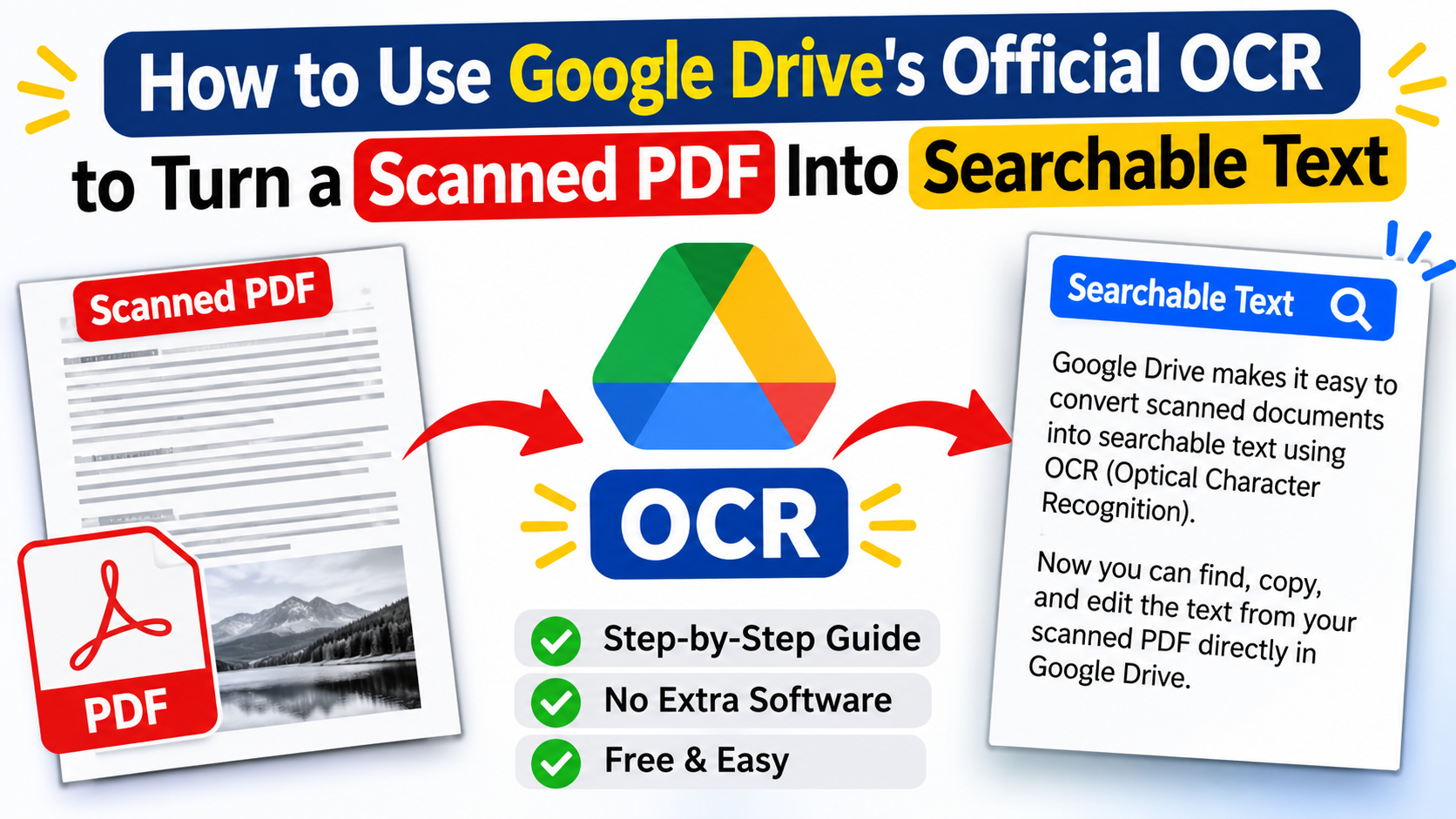
Google Drive's official help page describes a different result. Drive converts a PDF or a JPEG, PNG, or GIF image into a Google Docs document containing the recognized text, rather than into a searchable PDF. Google recommends files of 2 MB or smaller, text at least 10 pixels high, pages that are right-side up, and common fonts such as Arial or Times New Roman. Bold, italics, font size, font type, and line breaks usually carry over, but lists, tables, columns, footnotes, and endnotes are not likely to be detected. That makes Drive a good fit for pulling editable text out of a scan, and a weaker fit for preserving the original page layout.
What Are the Official ABBYY FineReader PDF OCR Features for a Searchable PDF?
ABBYY FineReader PDF is desktop software that uses ABBYY's AI-based OCR to convert scanned paper documents, images, and PDFs into searchable PDF, Word, Excel, and other formats. ABBYY's official materials list 198 recognition languages. The Windows version comes in two editions. Standard covers PDF editing, protection and signing, PDF creation and conversion, and OCR for scans. Corporate adds document comparison across formats, such as a scanned PDF checked against its original Word file, plus Hot Folder automation for batch conversion. FineReader PDF for Mac is a separate product that converts PDFs, scans, and document images into searchable and editable formats. Because the OCR runs on the desktop, files are processed on the user's own computer rather than uploaded to a web service.
Which edition fits a corporate scanning workflow
ABBYY also sells volume licenses for organizations, with 1-year and 3-year subscription plans, network deployment, and central license management. The Hot Folder page limit applies only to automated processing and resets every 30 days.
Features that matter for archives and access
Batch conversion: Corporate's automation tools can convert many documents at once into searchable PDF and PDF/A, the PDF format designed for long-term archiving.
Accessible output: the full Windows version can convert files to PDF/UA, the PDF standard for accessibility.
Layout retention: ABBYY's OCR aims to keep the original page layout while making text selectable and searchable.
Mobile capture: ABBYY's official FineReader PDF purchase pages say a free year of FineReader for mobile is included with each license.
Is There an Official ABBYY FineReader PDF Online OCR Tool for a Searchable PDF?
No. ABBYY has closed FineReader Online, its former browser-based conversion service. The official end-of-life notice on ABBYY's FineReader PDF site says the service is no longer available and that ABBYY now focuses on on-premise PDF and conversion tools for Windows, macOS, and mobile instead of a separate online service. To use ABBYY's OCR today, a team installs FineReader PDF on Windows or Mac, uses FineReader for iOS to capture documents and extract text on a phone, or deploys FineReader Server for large-volume OCR on company servers. Teams that want to make scanned PDFs searchable without installing software can use a browser-based tool instead, such as Adobe Acrobat's online OCR or Google Drive's built-in conversion.
How the official options compare
What Adobe Acrobat's online OCR returns
Adobe's tool recognizes text in a PDF and saves it as a searchable PDF, so the result stays a PDF rather than becoming a separate text document. Recognized text can be searched, copied, and highlighted, and Adobe says its OCR keeps the original layout, fonts, and formatting. The free tool handles PDFs in English, German, Spanish, French, Portuguese, and other languages, and it can process multi-page files. Recognizing text in image files such as PNG, JPG, and TIFF, or editing the recognized text, requires Adobe Acrobat Pro, which offers a 7-day free trial.
Frequently Asked Questions
How can I tell whether a PDF is already searchable?
Try to select or highlight a few words in the file. If you can select the text, the PDF already has a text layer and is searchable. If nothing highlights, the PDF is an image of the page and needs OCR. Checking a sample from each batch before conversion saves time, since many archives mix digital PDFs with scanned ones.
What scan quality gives the most accurate OCR?
Clear, high-contrast pages give the best results. Google recommends sharp images with even lighting, text at least 10 pixels high, pages that are right-side up, and common fonts. Adobe notes that poor image quality, unusual fonts, and handwriting reduce accuracy, and that a higher scan resolution helps. For corporate scanning, set office scanners to a consistent resolution and rotate pages correctly before running OCR, so that names, dates, and figures are recognized reliably.
Does OCR make scanned documents accessible to screen readers?
Yes, OCR is the first step. A scanned page is only an image, so screen readers cannot read it aloud. Once OCR adds recognized text, assistive technology can read the content or convert it to Braille. Adobe lists accessibility as a core use of its OCR tool, and ABBYY FineReader PDF for Windows can save files as PDF/UA, the accessibility standard for PDFs. Full accessibility can also require tags and reading order, which OCR alone does not add.
Google Drive's official OCR turns a scanned PDF into searchable, editable text in a Google Doc, while a dedicated tool such as Adobe Acrobat's online OCR keeps the file a PDF and makes its text searchable in place.